Introduction (First-Person Hook)
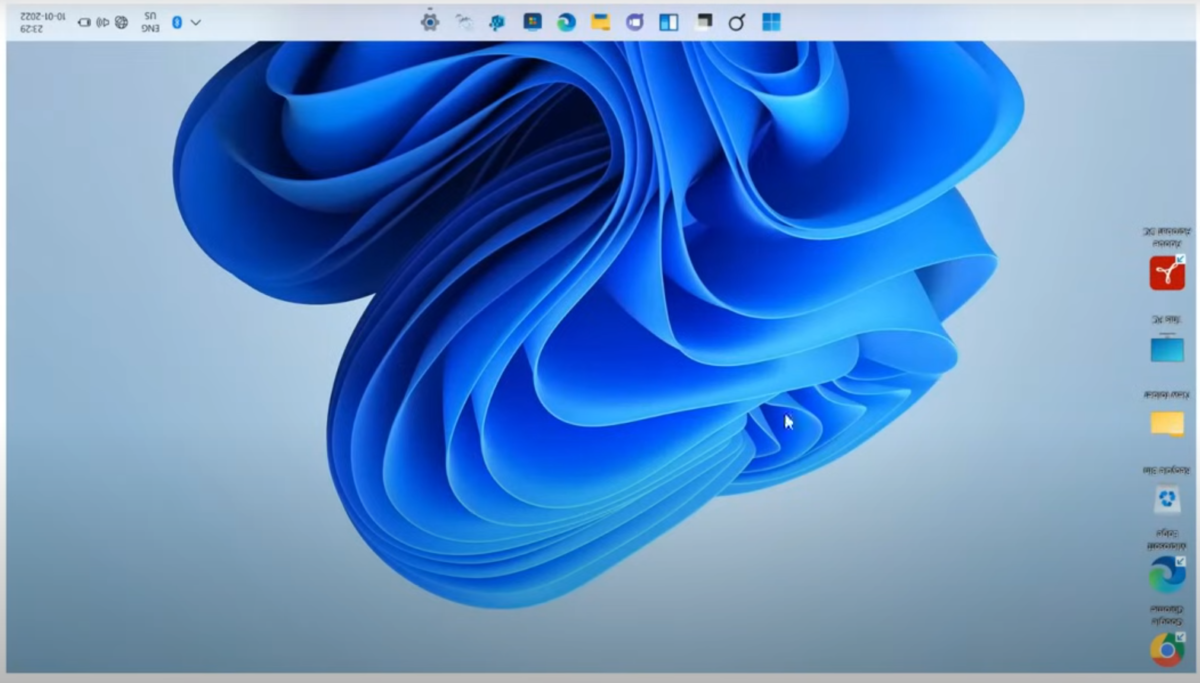
At work today, a colleague walked up to me clearly distressed. She had just received her laptop back from a technician who replaced the battery—and the moment she powered it on, the entire screen was upside down. She thought the laptop was damaged.
I assured her it wasn’t.
This is a surprisingly common Windows issue, usually caused by a display setting change or an accidental keyboard shortcut. In this guide, I’ll walk you through exactly how I fixed it, and how you too can solve it yourself in under two minutes.
Why a Windows 11 Screen Turns Upside Down
Before fixing the problem, it helps to understand the cause. In most cases, it happens because of:
- An accidental key combination (common with external keyboards)
- Display settings altered during repairs or driver updates
- Auto-rotation sensors on 2-in-1 laptops or tablets
- Graphics driver resets (Intel Graphics is the most common culprit)
The good news: no hardware damage is involved.
Method 1: Fix the Upside-Down Screen Using Windows 11 Settings (Most Reliable)
This is the method I used to fix my colleague’s laptop, and it works on all Windows 11 devices.
Step-by-step:
- Right-click on any empty space on your desktop
- Click Display settings
- Scroll down to Scale & layout
- Locate Display orientation
- Click the drop-down menu and select Landscape
- When prompted, click Keep changes
Your screen should instantly return to its normal upright position. However it is worthy of knowing that since the screen’s display has been altered somehow, it is always not too easy moving the mouse pointer around using this method. It is important to know that you need to use the Tab Key, Enter, Arrow Keys, as well as the Spacebar Key occasionally.
Note:
If you intentionally want an inverted display (for example, a ceiling-mounted monitor), select Landscape (flipped) instead.
Watch this video on how to fix upside down screen display
Method 2: Fix the Screen Using Keyboard Shortcuts (Fastest Method)
If your system supports it (mostly Intel Graphics), keyboard shortcuts are the quickest fix.
Try these:
- Ctrl + Alt + Up Arrow → Normal (upright) screen
- Ctrl + Alt + Down Arrow → Upside down
- Ctrl + Alt + Left Arrow → Rotate left
- Ctrl + Alt + Right Arrow → Rotate right
If nothing happens, don’t panic. Some Windows 11 systems disable these shortcuts by default.
What to do if shortcuts don’t work:
- Open Intel Graphics Command Center
- Enable hotkeys under System → Hotkeys
- Or install a trusted app like Screen Rotate from the Microsoft Store
Method 3: If You’re Using a Tablet or 2-in-1 Laptop
If your screen keeps flipping whenever you move the device, the issue is likely auto-rotation.
Disable Rotation Lock:
- Press Windows key + A to open Quick Settings
- Look for Rotation lock
- Turn it off
Check Orientation Sensors:
- Right-click Start
- Open Device Manager
- Expand Sensors
- Update or reinstall the sensor driver if needed
My Final Advice
In my colleague’s case, the technician likely triggered a shortcut or reset the graphics driver during the battery replacement. Once I reset the orientation, her laptop worked perfectly.
If your Windows screen suddenly flips upside down, don’t rush to a repair shop. Try these steps first—you’ll often fix it yourself in seconds.
This is exactly the kind of everyday tech problem we help readers solve here, one guide at a time.